Wireless Printing Freedom: Using HP Printers on Linux
Introduction
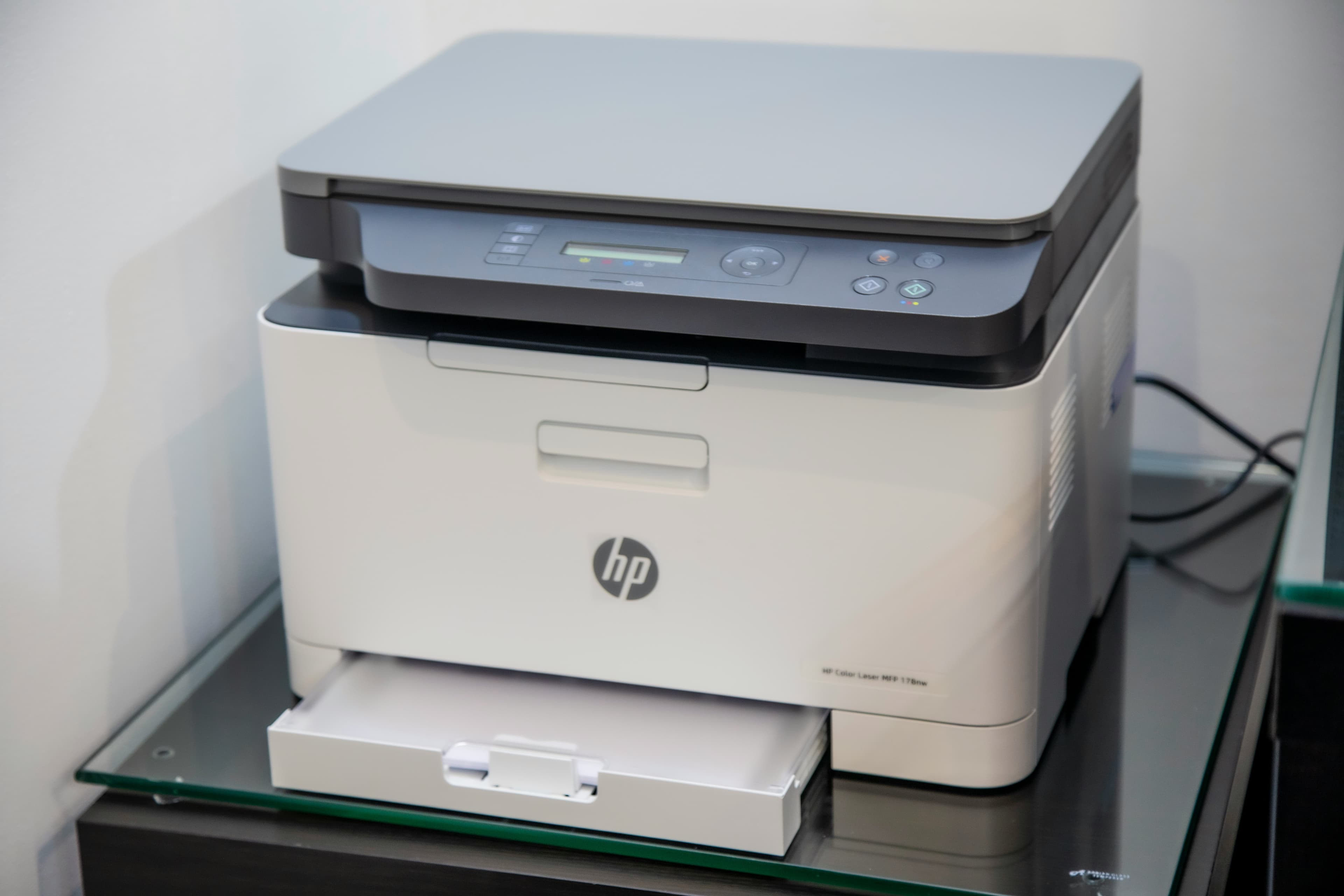
Linux and printers used to have a rocky relationship, but HP is actually one of the "good guys" in this space. Thanks to the HPLIP (HP Linux Imaging and Printing) project, getting an HP DeskJet 2630 (or almost any other HP model) up and running is often smoother than it is on Windows.
Whether you're rocking a minimal Arch build or a polished Fedora workstation, this guide will show you how to handle the initial setup, configure a wireless connection, and manage your documents without a single proprietary "bloatware" app in sight.
1. Installing the Essentials
Before we talk to the hardware, you need the drivers. Most distributions include HPLIP in their repositories, but you might need to install it manually.
- Ubuntu/Debian:
sudo apt install hplip hplip-gui - Fedora:
sudo dnf install hplip hplip-gui - Arch:
sudo pacman -S hplip python-pyqt5(the latter is for the UI)
2. The Setup: hp-setup
HP provides a dedicated tool called hp-setup to handle configuration. Depending on your preference (and your connection type), you have two main paths.
Option A: The CLI
If your printer is already plugged in via USB or connected to your router via Ethernet, the command line is the fastest way.
hp-setup -iThe -i stands for interactive. It will walk you through selecting the connection type, naming the printer, and installing any necessary proprietary "plug-ins" (required for some LaserJet models).
Option B: The UI (Required for WLAN Setup)
If you have a printer like the DeskJet 2630 and need to connect it to your Wi-Fi for the first time, the UI is highly recommended. While the CLI is powerful, configuring a fresh wireless connection usually requires the graphical wizard.
- Run
hp-setupin your terminal (without the-i). - Select "Wireless/802.11 (USB required for setup)".
- Connect the printer via USB temporarily. The tool will scan for local SSIDs, ask for your Wi-Fi password, and "push" those credentials to the printer.
- Once the printer's wireless light stays solid, you can unplug the USB cable and finish the installation over the network.
3. Printing and Scanning
Once hp-setup finishes, your printer is registered with CUPS (the Common Unix Printing System), the backbone of Linux printing.
Printing
You can now print from any application like LibreOffice or Firefox. To manage your queue, check ink levels, or perform head cleaning, use the HP Device Manager:
hp-toolboxThis dashboard provides a visual status of your cartridges and any pending errors without needing to check the printer's physical screen.
Scanning
HP "All-in-One" units are well-supported on Linux via the SANE (Scanner Access Now Easy) backend. You don't need a special HP scanning app; you have two great native options:
- Document Scanner (Simple Scan): The go-to tool for GNOME/Ubuntu users. It’s a "one-click" solution for grabbing a PDF or JPG.
- XSane: If you need professional-grade control over gamma, resolution, and color correction, XSane is the power-user choice.
Troubleshooting Tips
- Permission Denied: If your scanner isn't detected, your user account might lack permissions. Fix this by adding yourself to the
lpandscannergroups:sudo usermod -aG lp,scanner $USER(Log out and back in for this to take effect). - The "Plug-in" Loop: Certain LaserJet models require a proprietary binary blob to function. If the automatic prompt fails, force it by running:
hp-plugin - Static IP: If your printer "disappears" after a router reboot, consider assigning it a static IP in your router settings or the
hp-setupadvanced options.
Read Next
Building the Ploopy Adept BLE (Any Ball Mod)
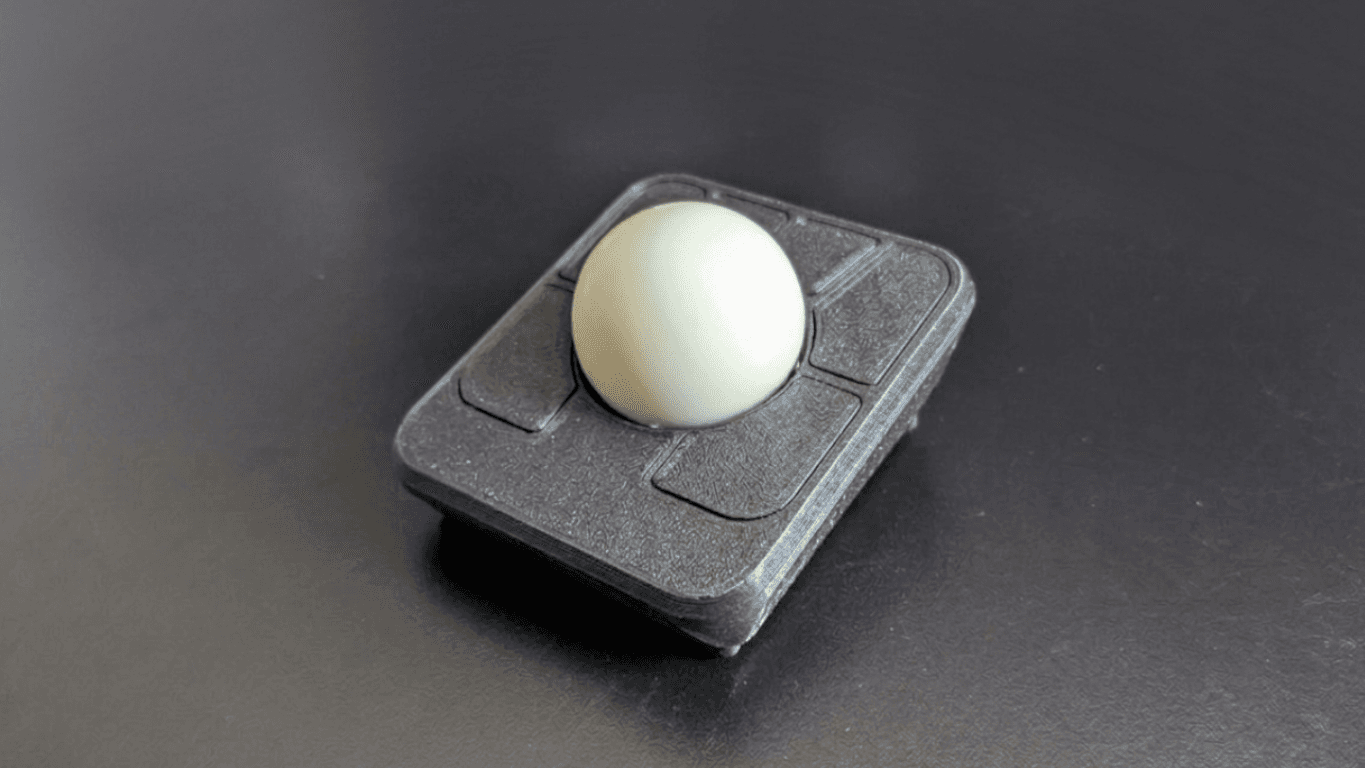
A comprehensive guide on how to build a wireless Ploopy Adept trackball, featuring the highly recommended Any Ball mod, ordering the PCB, and assembling the components.

Daily Bugle TryHackMe Write-Up
The Daily Bugle room on TryHackMe is a hard room that requires you to compromise a Joomla CMS account.
Glove 80 - Per-Key Coloring
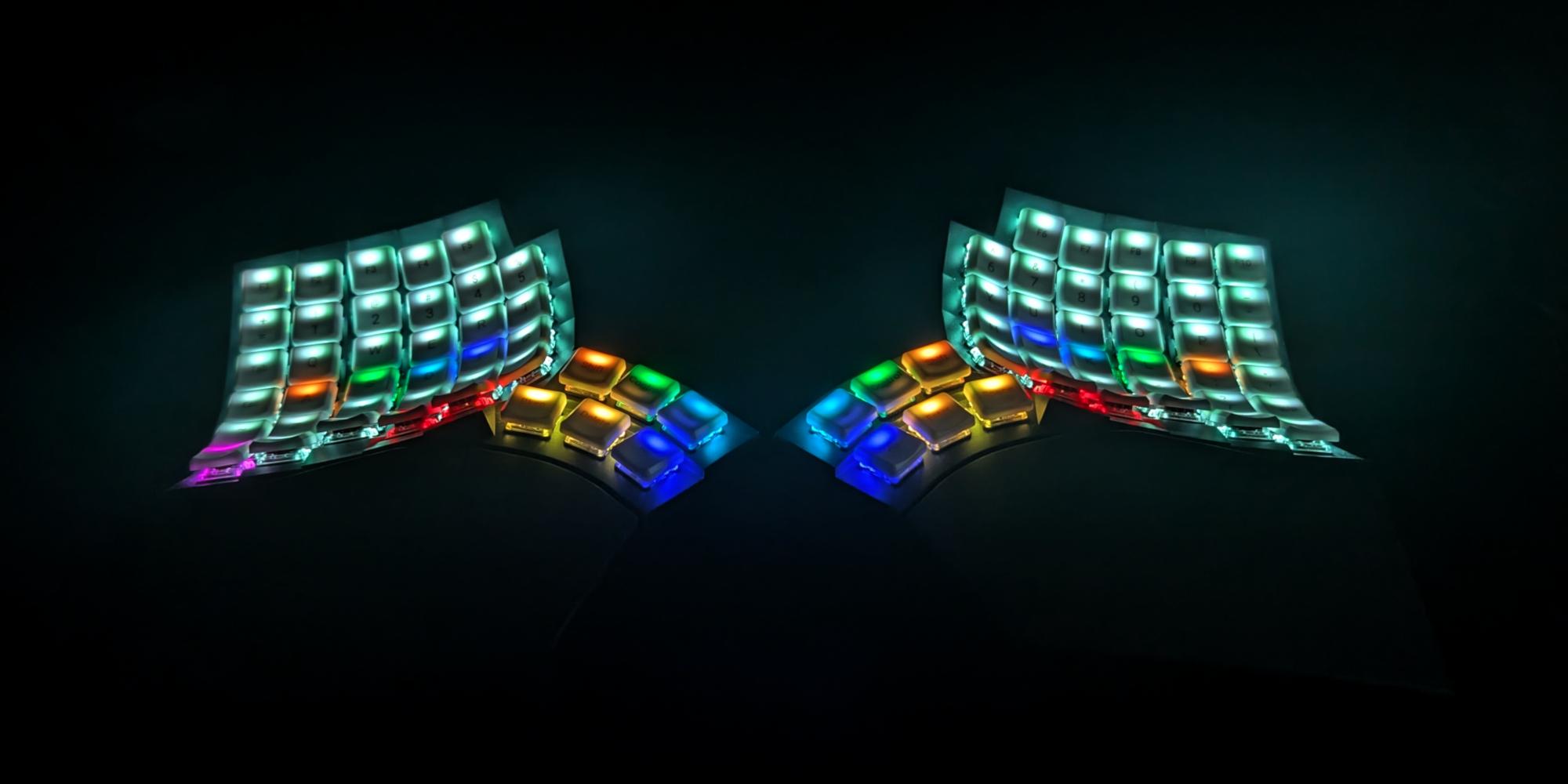
The Glove 80 is a mechanical keyboard with per-key RGB lighting. In this post we will explore how to set the colors of the keys.