How to Access Raspberry Pi GPIO Pins Inside a Docker Container
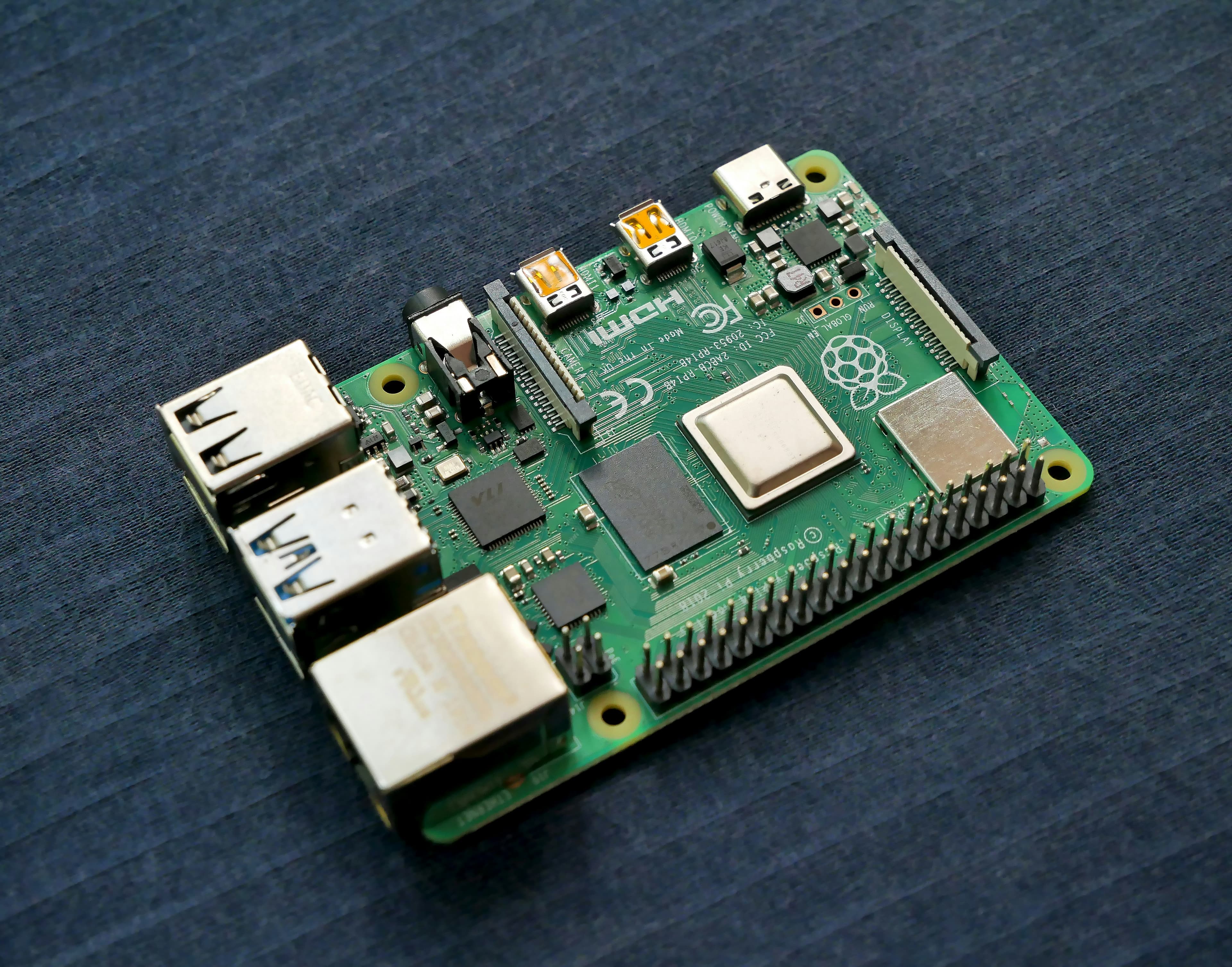
Disclosure: This post may contain affiliate links. If you make a purchase through these links, I may earn a small commission at no additional cost to you. If you are building a homelab or automating your home network, you'll eventually want to run lightweight services on a Raspberry Pi 4 using Docker. Docker is fantastic for keeping your dependencies isolated, but that isolation becomes a hurdle when your containerized app needs to interact with physical hardware—like the Pi's GPIO (General Purpose Input/Output) pins.
By default, Docker containers do not have access to the host machine's hardware. If you try to run a script inside a container that toggles a GPIO pin, it will likely crash with a "permission denied" or "device not found" error.
Here is how to fix it properly without compromising your system's security.
The Solution: Mapping /dev/gpiomem
Many tutorials online will tell you to run your Docker container in --privileged mode to solve hardware access issues. Avoid doing this if possible. Privileged mode strips away almost all of Docker's security isolation, giving the container root-level access to your entire host system.
Instead, the secure and elegant solution is to explicitly pass only the GPIO memory interface into the container. Linux handles hardware as files, and on a Raspberry Pi, the GPIO memory is located at /dev/gpiomem.
Using Docker Compose
If you are managing your deployments with docker-compose.yml (which is highly recommended for homelab setups), you can use the devices directive to map the GPIO interface from your host into the container.
Add this to your service configuration:
version: '3.8'
services:
my-gpio-app:
image: my-node-red-or-python-app:latest
restart: unless-stopped
# This is the magic line that passes the GPIO hardware into the container
devices:
- /dev/gpiomem:/dev/gpiomemUsing the Docker CLI
If you prefer to spin up your containers manually using the command line, you can achieve the exact same result using the --device flag:
docker run -d \
--name my-gpio-app \
--device /dev/gpiomem:/dev/gpiomem \
my--app:latestWhy /dev/gpiomem and not /dev/mem?
In older versions of the Raspberry Pi OS, developers often had to map /dev/mem to access GPIO. The problem is that /dev/mem gives access to all physical memory on the device, requiring your container to run as root.
/dev/gpiomem was introduced as a safer alternative. It restricts access purely to the GPIO registers, meaning your containerized scripts can run safely as a non-root user while still blinking LEDs, reading sensor data, or controlling relays.
Conclusion
By mapping /dev/gpiomem, you keep your Docker containers secure, maintain the principle of least privilege, and successfully bridge the gap between containerized software and physical hardware. Happy tinkering!
Read Next.

Creating a Windows 11 on Proxmox
Setting up Windows 11 on a hypervisor often leads to stuttering audio and slow disk I/O. We followed the official best practices to see if a virtualized workstation can truly replace bare metal.

Dirty Frag: Memory Corruption in the Linux IPv6 Stack (CVE-2026-43500)
Dirty Frag represents a dual-CVE vulnerability in the Linux kernel network stack. By exploiting a race condition in IPv6 fragment reassembly, attackers can achieve kernel-mode heap corruption and local privilege escalation.

How to deploy a next.js application on docker hub
Explore how to deploy a next.js application on docker hub.